AI Amazon Repricer
Boost your Amazon profits and avoid price wars with AI repricing


One reason Amazon sellers like the Amazon Seller Central platform is its user-friendly interface. Checking orders, tracking information, identifying delivery location and account health, and accessing crucial seller metrics and other relevant reports is much easier with Amazon.
In particular, Amazon devised a numerical ID system to help sellers efficiently track orders. This tracking number system is known to sellers as the Amazon Order ID.
Each Amazon Order ID is unique to avoid confusion for the seller. This system helps ensure that sellers do not mix up one order with another, especially when there are follow-ups or questions about a specific Amazon order.
Furthermore, the Amazon Order ID also serves as a confidentiality veil for Amazon shoppers since the Order ID numbers replace shoppers’ real names.
To summarize, an Order ID is a valuable Amazon tracking ID for sellers to cross-reference orders, a faster way to check details, and a secure way to protect a customer’s real name.
An Amazon Order ID is a unique identifier assigned to every order placed on its marketplace. It is 17 digits long, formatted in three groups separated by hyphens. Amazon officially calls this a “3-7-7 format.” Here is an example:
112-4738291-5047863
The Order ID in Amazon Seller Central is a convenient way to quickly filter orders. It makes the sellers’ task of tracking orders more efficient and faster.
With an Order ID, relevant details about the customer’s order can be quickly determined. Sellers will have a quick reference to information such as the order date, shipping status, product details, payment information, and other important tracking details.
The Order ID also makes it easier for sellers to track package progress, ensure timely deliveries at a secure location, and satisfy customers.
Some sources claim to decode each section of the Order ID, suggesting that the first three digits represent a fulfillment center, or that the middle seven digits link to the customer. These are community theories instead of confirmed facts.
Amazon has never officially documented what any segment of the Order ID encodes. Amazon has confirmed, through its Selling Partner API documentation, that the format is 3-7-7, that all digits are numeric for standard marketplace orders, and that the number is guaranteed to be unique to each transaction.
For practical purposes, yes. In Amazon Seller Central, the terms “Order ID” and “Order Number” are used interchangeably. Both refer to the same 3-7-7 formatted identifier.
The distinction matters more in specific contexts. Sellers operating through Vendor Central, the invite-only program for brand owners, encounter a different numbering system entirely. Amazon issues Purchase Orders (POs) for vendor transactions, which are separate from buyer-facing Order IDs.
Sellers using Multi-Channel Fulfillment (MCF) will also encounter a Merchant Order ID, a separate identifier the seller supplies, which should not be confused with the Amazon-assigned Order ID. For sellers operating through Seller Central, the rule is that Order ID equals Order Number.
There are four primary methods for finding the Amazon Order ID for sellers:
For day-to-day operational tasks, use this option. When action is needed on a specific order, such as when confirming shipment, printing a packing slip, handling a cancellation, or checking the status of an individual transaction, this option provides a live view of current orders. It’s efficient when something requires immediate attention. The information is transactional and action-oriented. Here is the step-by-step method:
Step 1—Log in to Your Amazon Seller Central Account: Go to Amazon Seller Central and log in with your Seller Central credentials.
Step 2— Navigate to the Orders Page: From the main dashboard, hover over the main menu and click “Orders.” Once the sub-menu appears, click on “Manage Orders.”
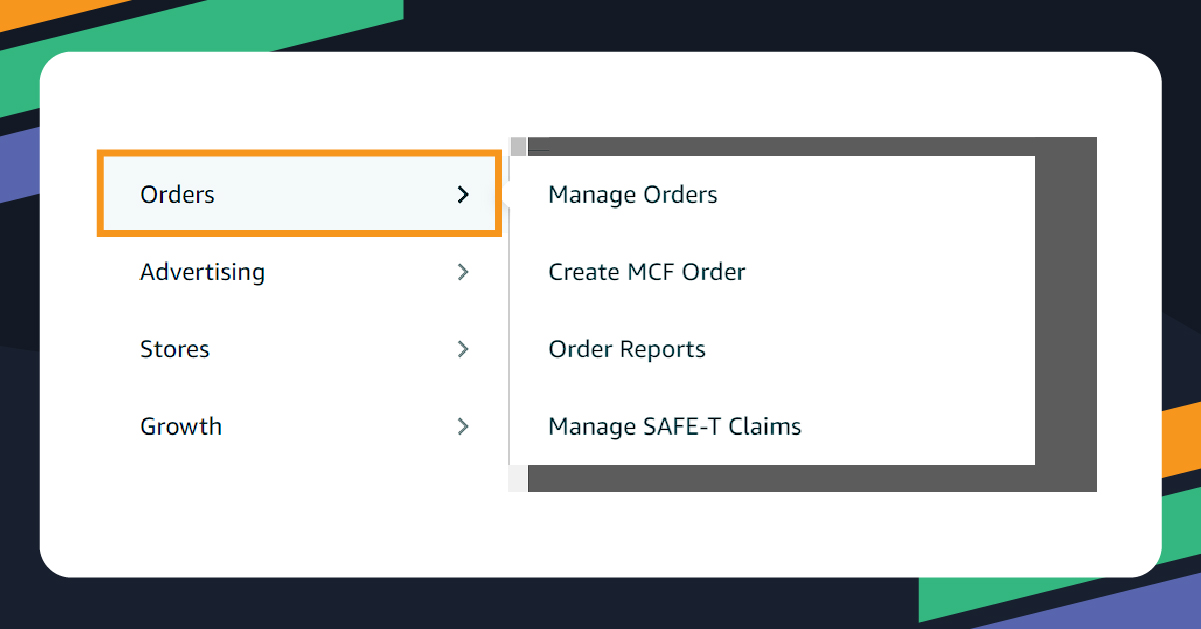 Image Adapted from Amazon Seller Central Page: Landing Page Main Menu; Retrieved: 24 September 2024
Step 3—Locate the Item: Once you are redirected to the order page, you can see a list of recent orders. If you cannot find the specific order you are looking for, you can use the search bar to enter details such as order date and item purchased. Alternatively, you can also check the “Shipped,” “Unshipped,” or “Canceled” tabs.
Step 4—Finding the Order ID: Once you have identified the item ordered, you can check the “Order Details” section. The Order ID is prominently displayed along with the order date, payment status, and other relevant customer information. The Amazon Order ID will look like a long string of numbers and hyphens, such as “123-1234567-1234567.”
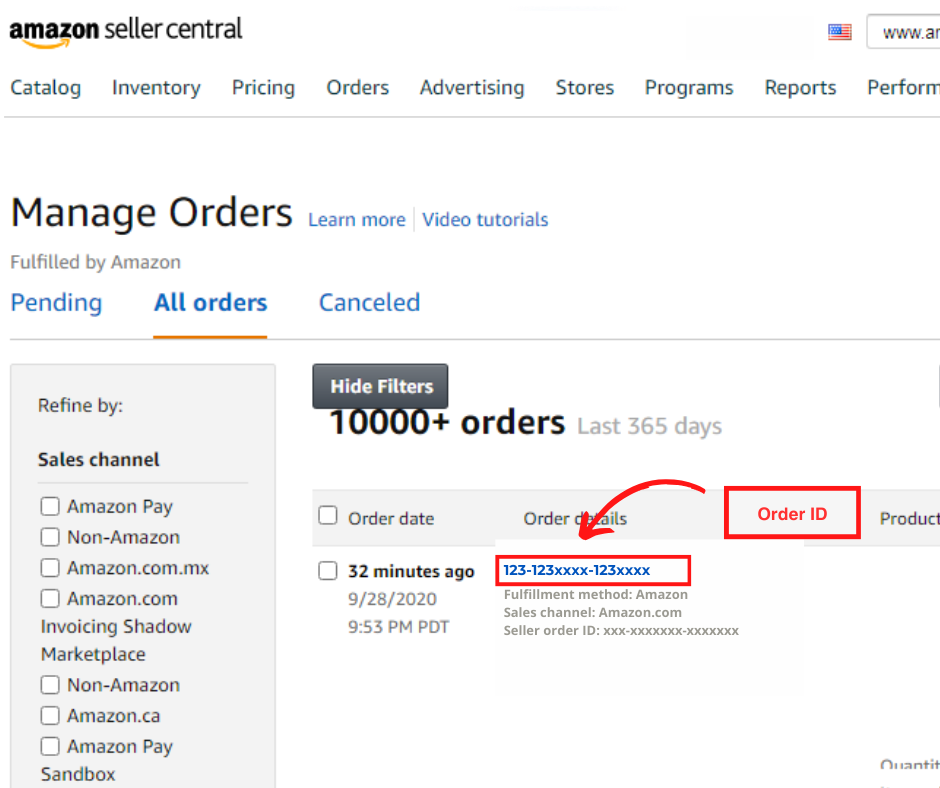
Image Adapted from Amazon Seller Central Forum Page: Manage Order Page; Retrieved: 24 September 2024
This option is built for data and record-keeping for Fulfilled by Merchant (FBM) orders. FBM sellers use it when a bulk download of order history is needed across a selected date range, such as for bookkeeping, reconciling payments, feeding data into a spreadsheet, or cross-referencing Order IDs against other records. It is not designed for taking action on orders but for analysis and documentation after the fact. Here is the step-by-step method:
Step 1—Log in to your Amazon Seller Central account.
Step 2—In the top navigation bar, hover over Orders.
Step 3—Click Order Reports from the drop-down menu.
Step 4—On the Order Reports page, set your preferred date range.
Step 5—Click Request Report to generate the file.
Step 6—Once the report is ready, click Download to save it as a .txt or .csv file. The downloaded report includes Amazon Order ID as a dedicated column, alongside ASINs, quantities, prices, and shipping details. This makes it straightforward to cross-reference Order IDs with payment records without having to look up transactions individually.
This option is specifically relevant to Fulfilled By Amazon (FBA) sellers. Amazon Fulfilled Shipments covers shipped FBA orders and includes fulfillment center details, tracking information, and customer shipment dates. Use it when you need to audit FBA fulfillment activity or investigate a specific shipment. This is how to access the report:
Step 1—Log in to your Amazon Seller Central account.
Step 2—In the top navigation bar, hover over Reports.
Step 3—Click Fulfillment from the drop-down menu.
Step 4—Select either Amazon Fulfilled Shipments or navigate to Sales, then All Orders, depending on the scope of data you need:
Step 5—Set your desired date range and click Request Report.
Step 6—Download the generated .csv file once it is ready.
When a buyer contacts you with a question or complaint, their message arrives in the Message Center and is automatically tagged with the associated Order ID. This allows you to pull up the relevant order details immediately, without asking the buyer for their order number. This is how you find it:
Step 1—Log in to your Amazon Seller Central account.
Step 2—In the top navigation bar, hover over Performance.
Step 3—Click Customer Messages from the drop-down. This opens the Buyer-Seller Messaging inbox.
Step 4—Browse your message threads. Each thread displays the associated Order ID alongside the buyer’s message.
Step 5—Click on a message thread to open the full conversation. The Order ID appears at the top of the thread.
Step 6—To locate a specific message, use the filter or search bar to search by Order ID, date, or message status.
You can also access messages directly via the envelope icon in the top navigation bar of Seller Central, which links to the same inbox.
The Order ID format is identical regardless of whether a seller uses FBA or FBM. What changes is the extent to which the seller is responsible for the shipping process, and this has significant consequences for account health.
This does not mean Order IDs are irrelevant for FBA sellers. If a customer files an A-to-Z Guarantee claim, even for a product fulfilled through FBA, the claim is tied to the Order ID and counts against the seller’s Order Defect Rate. FBA removes the shipping variables from the equation, but does not make a seller immune to performance issues.
For FBM sellers, every transaction is tied to the Order ID. This includes:
Failing to confirm the shipment on time results in a Late Shipment Rate. Failing to provide valid tracking results in a lower Valid Tracking Rate. Both are monitored on an order-by-order basis, with each Order ID contributing to rolling performance metrics.
One of the most important concepts for you to understand as a new seller is how Amazon calculates and disburses payment, and why accurate reconciliation depends on Order IDs.
Amazon pays sellers on a 14-day settlement cycle. Every two weeks, Amazon closes the settlement period, calculates the seller’s owed amount after deducting fees, and initiates a bank transfer.
Every settlement period generates a Settlement Report, which is available for download from Reports > Payments > All Statements in Seller Central. This document lists, line by line, exactly how much you received from each order and how much Amazon deducted.
Each line in a settlement report includes
When an order generates multiple transactions, such as a sale followed by a partial refund, each transaction gets its own line, all linked to the same Order ID.
This is the mechanism for verifying that you have been paid correctly. If a payment amount appears incorrect, the process is to look up the Order ID in the settlement report, trace all transactions associated with it, and identify the source of the discrepancy.
There are times when a single Order ID ships in multiple packages. This occurs frequently with FBA when items are stored in different warehouses, or with FBM when a seller splits a large multi-item order.
The Order ID remains the same for all shipments. Each shipment receives its own tracking number, but in the settlement report, all financial transactions associated with that order appear under the single original Order ID.
This can create confusion during bookkeeping, but remember that multiple financial entries for the same Order ID in a settlement report do not indicate an error. They indicate that the order was split into multiple shipments, generated a return, or resulted in a fee adjustment, all under the same root transaction.
Amazon Order IDs are central to how the most convincing scams operate and to how you can catch them.
Scammers typically send a convincing phishing email that includes a realistic-looking Order ID. The message might claim there is an urgent problem with a specific order, such as a payment dispute, a failed verification, or a compliance issue, and prompt you to click a link or provide sensitive information. Common scam types include the following.
The Order ID in the emails may appear legitimate, having 17 digits and following the correct 3-7-7 format. However, if that number is not available on your Manage Orders dashboard, the email is fraudulent.
Since Amazon is serious about customer service and seller efficiency, you should regularly check the Account Health section of your Seller Central account. The Account Health report gives you an overview of whether your performance aligns with Amazon’s policies and terms of service.
To maintain excellent account health, you should always strive to offer high-quality products and the best services, including adhering to the estimated delivery date and delivery location.
This section on your Seller Central account will help you understand the customer experience with your listing. You can review product or listing feedback from Amazon shoppers, allowing you to take immediate action to fix any issues raised by customers, including delivery service provider or Amazon logistics issues.
Once your listing has generated good traffic, you should also note the efficiency of the order fulfillment. The Amazon fulfillment report will give you an overview of your Amazon inventory levels, inventory age, payments, and returns.
This report is crucial for sellers, as it will guide them in making better operational decisions. For instance, if a delivery attempt or your own shipping service fails, the fulfillment report will be very helpful.
This section of Amazon Seller Central provides Amazon sellers with an overview of their sales conversion. It also showcases deactivated offers that may have pricing mistakes. This section also gives Amazon sellers an overview of their Amazon Buy Box eligibility.
If you wish to learn more about Amazon pricing, you can check its pricing page. However, if you want to automate your Amazon repricing strategy fully, you can use a third-party automatic AI Amazon repricer like Seller Snap.
With Amazon Seller Central reports and metrics, you can easily harness information about your business to create a better strategy. A better understanding of the use and importance of the Amazon Order ID, the Amazon delivery system or shipping method, and other crucial reports and metrics mentioned above will help you improve your business moving forward.

Set up in minutes with the help of our customer success team, or reach out to our sales team for any questions. Start your 15-day free trial—no credit card needed!